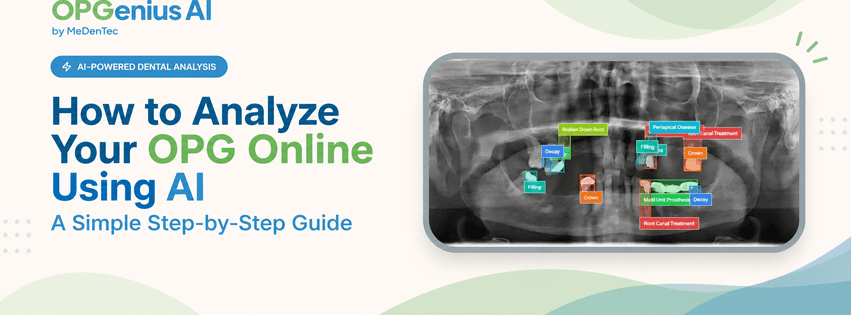
How to Analyze Your OPG Online Using AI: A Simple Step-by-Step Guide
Learn how to analyze your OPG online using AI. Follow this simple step-by-step guide to upload your panoramic dental X-ray, explore AI-detected findings, review tooth-level results, and download an OPG analysis report with OPGenius AI.
How to Analyze Your OPG Online Using AI: A Simple Step-by-Step Guide
You have your OPG.
Maybe your dentist sent it to you on WhatsApp.
Maybe you downloaded it from a radiology center.
Maybe you're a dental student reviewing a case.
Or perhaps you're a dentist looking for an additional way to review a panoramic radiograph.
And now you're wondering:
“Can I analyze my OPG online using AI?”
Yes.
AI-powered OPG analysis can help identify and visualize certain dental findings on a panoramic X-ray, giving you another way to explore what's visible in the image.
But you don't need to understand artificial intelligence to use it.
With OPGenius AI, the process is designed to be simple:
Upload → Analyze → Explore → Understand
Let's walk through it.
Step 1: Get your OPG ready
Before uploading your OPG, make sure you have the original digital radiograph.
No picture taken of the OPG film.
This is important.
OPGenius AI currently supports JPG, JPEG, PNG, DICOM, and TIFF files through its scanning workflow. For better analysis, the platform recommends using a good-quality original digital image.
Try to avoid:
❌ A photograph of a printed X-ray
❌ Blurry images
❌ Distorted images
❌ Low-resolution screenshots
Why?
Because AI can only analyze the information available in the image.
Better image quality → better information for the model to work with.
Step 2: Open OPGenius AI
Head to OPGenius AI.
One of the things that makes getting started simple is that you don't need to create an account just to try the free scan. The current mode provides access to on-screen results and a downloadable PDF report.
Look for:
“Scan Now”
Click it.
And you're ready to upload your OPG.
Step 3: Upload your OPG
Once you're on the scanning page, upload your panoramic dental X-ray.
You can either select the file from your device or drag and drop it into the upload area.
Then let OPGenius AI process the image.
You don't need to manually mark every tooth or tell the system where to look.
The AI analyzes the uploaded OPG and generates its findings.
Step 4: Let AI analyze the OPG
Once processing is complete, your OPG is no longer just a grayscale image.
OPGenius AI can display color-coded markers over detected findings, making them easier to locate on the radiograph.
Depending on what the system identifies, findings can include things such as:
Decay
Periapical disease
Root canal treatment
Crowns
Implants
Fillings
Broken-down roots
Impacted teeth
Step 5: Don't just look at the labels, explore them
This is one of the most useful parts of the experience.
Imagine the AI identifies several findings on your OPG.
You might see multiple-colored boxes across the image.
At first, you may think:
“Okay… but which box is showing what?”
OPGenius AI allows you to interact with the detected findings.
When you select or hover over an individual finding, the interface can isolate that finding while the others fade into the background. This makes it easier to focus on one area at a time.
So instead of trying to understand everything simultaneously:
One finding → one location → one tooth
This can be particularly useful when an OPG contains multiple findings.
Step 6: Look at the tooth number
Now ask:
“Which tooth is this?”
The AI results include associated tooth numbers in the summary, helping connect the detected finding to a specific location in the mouth.
This can be particularly useful for patients who have just been told:
“There's something going on with your lower molar.”
Instead of remembering only the terminology, you can visually connect the finding to the relevant area of the OPG.
For dental students, this can also help reinforce the relationship between radiographic findings and tooth identification.
Step 7: Review the summary
Once you've explored the individual findings, you can review the overall summary.
OPGenius AI provides a structured summary showing detected findings alongside associated tooth numbers.
Think of this as turning:
"One complicated image"
into:
"A more organized list of findings."
You can then review the image and the summary together.
Step 8: Download your report
Want to keep the results?
OPGenius AI provides a downloadable PDF report containing the analysis.
This can be useful when discussing the findings with your dentist or keeping the AI-generated analysis alongside your radiograph.
But remember:
The report is an AI-assisted analysis, not a diagnosis.
If the AI identifies something that concerns you, the next step should be discussing it with a qualified dental professional.
So, Can AI diagnose your OPG?
This is an important question.
No, AI analysis should not be treated as a replacement for a dentist's diagnosis.
An OPG is only one part of a dental assessment.
Your dentist also considers:
-Your symptoms
-Medical and dental history
-Clinical examination
-The reason the X-ray was taken
-Other radiographs or investigations
-Your overall treatment needs
OPGenius AI is designed to assist with the visualization and review of findings, not replace professional clinical judgment. The platform itself advises users to consult a qualified dental professional for diagnosis and clinical decisions.
Who can use AI-powered OPG analysis?
One of the interesting things about AI-assisted OPG analysis is that different people can use it for different purposes.
For patients
It can help make a complicated dental X-ray easier to explore and provide a starting point for questions to discuss with your dentist.
For dental students
It can provide an additional visual learning resource when studying radiographic findings.
For dentists
It can provide another layer of assistance when reviewing panoramic radiographs.
For researchers
It can also provide an accessible way to explore AI-assisted dental imaging technology.
OPGenius AI is designed around these different use cases, with the broader goal of making dental imaging more accessible.
What if the AI doesn't detect something?
This is just as important as understanding what it does detect.
AI systems are not perfect.
A finding not being highlighted doesn't necessarily mean that the finding is absent.
Likewise, an AI-highlighted area doesn't automatically mean that a disease is confirmed.
That's why the results should be viewed as AI-assisted information that needs appropriate clinical interpretation, rather than a final diagnosis.
Why analyze your OPG online with AI?
Because sometimes the hardest part isn't getting the X-ray.
It's understanding it.
You might have an OPG sitting on your phone right now and still have no idea what you're looking at.
AI-assisted visualization can help turn:
“What am I looking at?”
into:
“Where is the finding?”
and then:
“What should I ask my dentist about it?”
That's where technology can become useful.
Ready to explore your OPG?
If you already have a digital panoramic dental X-ray, you can try an AI-assisted analysis with OPGenius AI.
Upload → Analyze → Explore → Understand
And remember:
AI can help you see the information. Your dentist helps you understand what it means clinically.
Want to see AI-powered dental analysis in action?
Try a Free OPG Scan